Monday, January 28, 2013

CLOUD COMPUTING TECHNOLOGY

What is cloud computing?

Everyone is talking about “the cloud.” But what does it mean?

Business applications are moving to the cloud. It’s not just a fad—the shift from traditional software models to the Internet has steadily gained momentum over the last 10 years. Looking ahead, the next decade of cloud computing promises new ways to collaborate everywhere, through mobile devices.

Life before cloud computing

Traditional business applications have always been very complicated and expensive. The amount and variety of hardware and software required to run them are daunting. You need a whole team of experts to install, configure, test, run, secure, and update them.
When you multiply this effort across dozens or hundreds of apps, it’s easy to see why the biggest companies with the best IT departments aren’t getting the apps they need. Small and mid-sized businesses don’t stand a chance.
 
Cloud computing: a better way
With cloud computing, you eliminate those headaches because you’re not managing hardware and software—that’s the responsibility of an experienced vendor. The shared infrastructure means it works like a utility: You only pay for what you need, upgrades are automatic, and scaling up or down is easy.
Cloud-based apps can be up and running in days or weeks, and they cost less. With a cloud app, you just open a browser, log in, customize the app, and start using it.
Businesses are running all kinds of apps in the cloud, like customer relationship management (CRM), HR, accounting, and much more. Some of the world’s largest companies moved their applications to the cloud with salesforce.com after rigorously testing the security and reliability of our infrastructure.
As cloud computing grows in popularity, thousands of companies are simply rebranding their non-cloud products and services as “cloud computing.” Always dig deeper when evaluating cloud offerings and keep in mind that if you have to buy and manage hardware and software, what you’re looking at isn’t really cloud computing but a false cloud.

In a cloud computing system, there's a significant workload shift. Local computers no longer have to do all the heavy lifting when it comes to running applications. The network of computers that make up the cloud handles them instead. Hardware and software demands on the user's side decrease. The only thing the user's computer needs to be able to run is the cloud computing system's interface software, which can be as simple as a Web browser, and the cloud's network takes care of the rest.
There's a good chance you've already used some form of cloud computing. If you have an e-mail account with a Web-based e-mail service like Hotmail, Yahoo! Mail or Gmail, then you've had some experience with cloud computing. Instead of running an e-mail program on your computer, you log in to a e-mail account remotely. The software and storage for your account doesn't exist on your computer -- it's on the service's computer cloud.

SALESFORCE.COM, HOWSTUFFWORKS.COM

Thursday, January 3, 2013

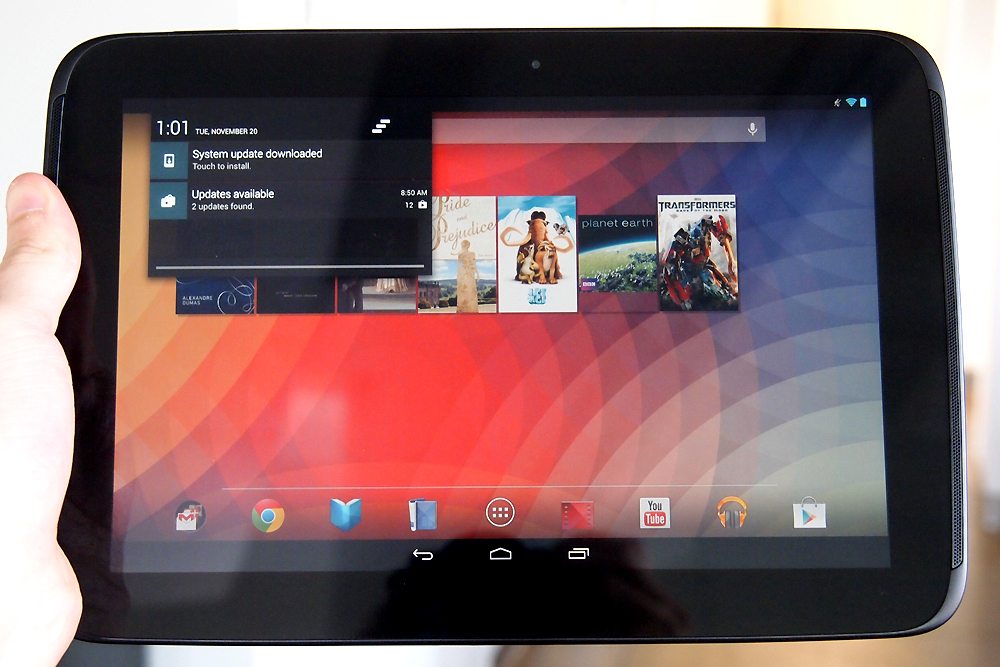
THE 10 INCH TABLET FIGHT: IPAD VS SURFACE RT VS NEXUS 10


APPLE IPAD vs MICROSOFT SURFACE RT vs GOOGLE NEXUS 10


 A lot of people struggle with making the decision on which of these tablets to buy, this comparison by simon hill on Digital Trend should help.

The tablet market has gotten so much more interesting, as of late. The market-leading iPad finally has some competition that’s worthy of the name, and both Google and Microsoft have launched large, eye-catching tablets with their sights set on Apple. If you’re shopping for a tablet now, the choice is no longer so obvious. Join us as we run through the highs and lows of the fourth-generation Apple iPad, the Google Nexus 10, and the Microsoft Surface RT.

Display

Whether you’re reading, watching movies, surfing the web, or gaming, you’ll be staring at that touchscreen for hours.
The fourth-generation iPad has a 9.7-inch screen with a 2048 x 1536 pixel resolution, which translates to 264ppi (pixels per inch). It looks amazing. While Apple’s “Retina Display” used to be streets ahead of its rivals, that’s no longer the case. The Nexus 10 boasts a 10-inch screen with a resolution of 2560 x 1600 pixels, which is a whopping 300ppi. Microsoft obviously missed the memo on better screens because the Surface lags way behind with a 10.6-inch screen that has a 1366 x 768 pixel resolution, which is a disappointing 148ppi. Still, compare its screen to anything but an iPad or Nexus 10 and it looks pretty good. You’ll just notice a few pixels here and there.
Both the Nexus 10 and the iPad displays look sharp, colorful, vibrant and generally awesome. The Surface is clearly the weak link. The Nexus 10 edges the win over the iPad in sheer numbers, but we’re calling it a draw between Apple and Google in this category.

Design

Surprisingly, the Nexus 10, which is 10.4 x 7 inches, is also a relatively light and thin tablet. It weighs 1.33 pounds and is only 0.35 inches thick, comparable weight and thickness to any tablet, including Samsung’s Galaxy devices. The Nexus is plastic and it has the most rounded curves of the three. It’s probably the most comfortable to hold, but it’s also the least durable and only comes in black.
Google Nexus 10 review front android tabletThe iPad is 9.5 x 7.31 x 0.37 inches and it weighs 1.44 pounds. It has that solid aluminum unibody and it feels reassuringly expensive. You can get the iPad in white and silver or black and silver. One of Apple’s greatest strengths is design and fabrication. The iPad still feels like the best-built tablet on the market, just not by as big a margin as it did before.
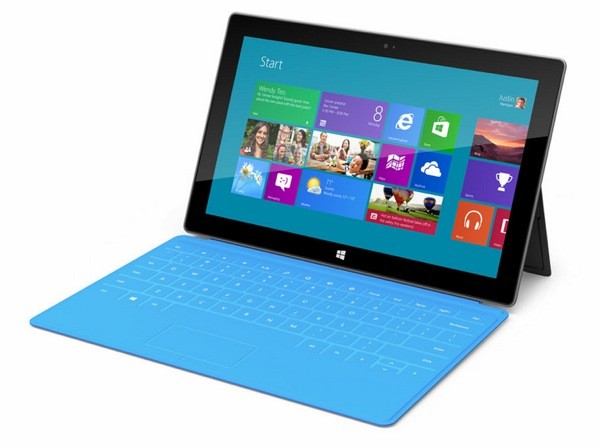
Tall and slim, the Surface measures 10.81 x 6.77 x 0.37 inches and weighs in at 1.5 pounds, making it the heavyweight of the group. It has straight edges and a more industrial design. The magnesium chassis and built-in kickstand give it a different, more precise feel. The covers slot on easily thanks to the magnetic connector. The Surface only comes in black, but the covers add a splash of color.

Ecosystem and content

The chances are good that you’re buying a tablet for entertainment purposes, so you want to know what kind of content you can access and how easy it is to use. We’ll take a look at the three key areas for this.

Apps and games

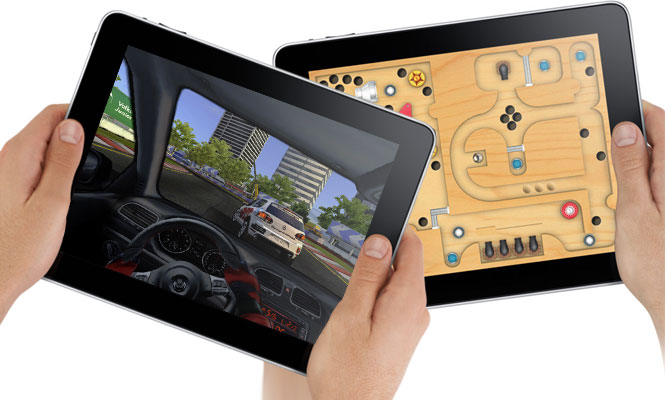
The iPad wins this category not only for sheer variety, but also because it has more polished games and apps that were specifically designed for its 9.7-inch screen. Android tablets have access to a lot of apps, but most of them are only designed for smaller phone interfaces. Apple was wise to require custom apps for the iPad. If you’re into gaming, particularly, then the iPad is the way to go.

Google’s Nexus 10 can run a huge variety of apps and games accessible via Google Play. Google’s content offering has improved a great deal in the last year and you will find more free apps there than in the App Store. There are some high-quality options too, but as a general rule the premium apps and games still come to iOS first and get ported to Android later. Android is still catching up when it comes to tablet apps.
Microsoft has a real challenge on its hands to convince developers to create apps and games for Windows RT. This version of the OS will only run apps from the new Windows Store, which only launched in October 2011. Whatever way you slice it there are far, far fewer apps and games for the Surface.

Movies, TV, and music

Google Play and iTunes offer a good selection of content. There are more movies and TV shows on Google Play and more music on iTunes, but most people will look beyond these destinations for their content. You can get apps for Netflix, HBO Go, Hulu Plus, and Amazon to access more movies. You can also use services like Pandora and Spotify, or find music through an app like TuneIn Radio. The Nexus 10 and iPad both offer a wide variety of popular services for watching TV, movies, and listening to music. Microsoft lags behind.
There are versions of some, but not all, of these apps and services for Windows RT. The ones that have been ported are not generally as polished as their iOS or Android counterparts. One advantage that the Surface could have here is its tie-in with the Xbox 360. If you use your Xbox as an entertainment hub in the living room, the SmartGlass app allows you to enjoy a true second-screen experience on your tablet and remotely control the console. However, you can get the app for Android and iOS as well.

Books and magazines

There is no shortage of books and magazines on offer for all three tablets. The iPad has iBooks, but it can also access Google Play Books, whereas the Nexus 10 can’t access iBooks. You can also get the Kindle or the Nook app for each one and they are your best bet for choice.
Magazines are best on the iPad as the layout tends to be perfect. Both the iPad and Nexus 10 have good magazine options, but the Surface lags behind and tends to have more wasted space on screen. Readability is noticeably better on the sharper Nexus 10 and iPad.

Productivity

If you intend to use your tablet for work, you’ll find all three are suitable for checking email, organizing calendars and notes, and editing documents (with the right apps). But the Surface does gain an edge here. Even ignoring the keyboard covers, (it’s worth remembering you can get similar accessories for the iPad or Nexus 10, although they won’t be as well integrated), the Surface has a few extras up its sleeve. You can map network drives and access your HomeGroup computers, you can plug in a second screen, and Remote Desktop comes as standard. All Windows RT devices also come with a version of Microsoft Office with basics like Word, Excel, PowerPoint, and One Note. iPad would earn a second place in this category, but its apps aren’t built in and its keyboard solutions aren’t as elegant.

Performance

With Nvidia’s 1.3Ghz Tegra 3 quad-core processor and 2GB of RAM, the Surface is no slouch. The Nexus 10 offers a dual-core, 1.7Ghz Exynos 5 processor also backed by 2GB of RAM. The iPad has Apple’s A6X processor clocked at 1.4 GHz and just 1GB of RAM.
In benchmark tests, the Nexus 10 is the clear winner, although the iPad is best at processing graphics. The iPad and the Nexus 10 are very responsive. In hands-on comparisons here at DT though, we’ve found that the iPad still feels most responsive and works the best for users. 

Storage

The Surface comes with either 32GB or 64GB of storage, and it is the only device to have a microSD card slot so you can boost that by another 64GB. However, it comes with a catch: 13GBof its onboard memory is hogged up by the operating system, making its claims of 32GB of storage a little disingenuous. The Nexus 10 comes in 16GB or 32GB varieties. The iPad comes in 16GB, 32GB, and 64GB varieties.
You also get 7GB of cloud storage for free thanks to Microsoft’s SkyDrive with the Surface. With the iPad you’ll get 5GB via iCloud. Google Drive will also give you 5GB for the Nexus 10, but Google Music also allows you to store up to 40,000 songs, Gmail offers 10GB, and you can store as many photos as you like in Google+. Interestingly, you can also get SkyDrive for Android or iOS, and all of Google’s services are available on iOS or Windows RT.
Surface tablet storage microsoft surface windows rt
With all that said, no matter which tablet you choose, if you want to store media or files on your tablet, you’re going to be extremely limited. We’ve repeatedly ran out of space on our iPads and other devices when we try to load up content for, say, a long flight. Put a few Amazon videos on a 16GB tablet or some songs, and space gets sparse fast.

Cameras

The iPad and the Nexus 10 both have 5-megapixel rear-facing cameras that can record 1080p video. The Nexus 10 also has a 1.9-megapixel front-facing camera for video calls while the iPad’s is 1.2-megapixel.
The clear loser again is the Surface, which has front and rear 1-megapixel cameras that can record in 720p. However, we must note that both the front and rear camera are angled – they only point straight when you have the Surface kickstand out. If you are holding the tablet, you’ll have to angle it in your hands to get a straight shot. The Surface camera is obviously only really intended for video calls. It does feel odd using a tablet to take photos, so this probably won’t be a big deal for most people.

Connectivity

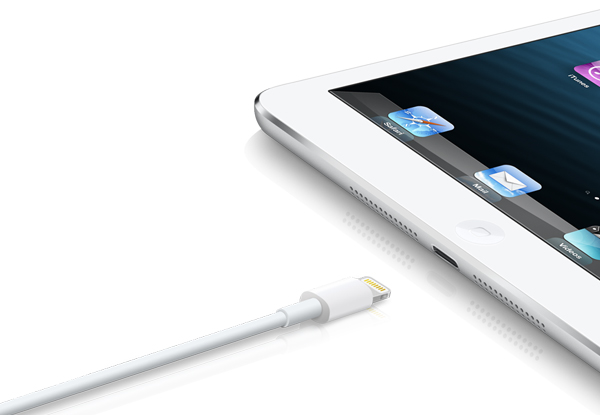
The Lightning connector in the iPad 4 renders old accessories useless without an expensive adapter. The Nexus 10 is more standard with Micro USB and Micro HDMI ports. The Surface uses a proprietary AC adapter for charging and a proprietary HD video out adapter, but it does have a USB port which can be used to charge mobile devices.
All three have Wi-Fi and Bluetooth. Only the Nexus 10 has NFC. Only the iPad offers cellular network support for 3G or 4G LTE, but it will cost you. Overall, when it comes to connectivity, Microsoft’s full-size USB port takes the cake, and Windows is still better equipped to connect up to smaller devices like cameras and MP3 players. However, Google’s use of Micro USB makes it easy to charge the Nexus no matter where you are. With the iPad, be prepared to pay extra for fancy dongles. 

Battery life

There isn’t a huge difference when it comes to battery life. The iPad wins with 10 hours to the Nexus 10’s 9 hours and the Surface is last with 8 hours. Actual battery life depends on how you use the device.

Price

The prices get quite complicated when you add in all the various possible permutations. What we can say is that the Nexus 10 is the cheapest at $400 for the 16GB, or $500 for the 32GB. The iPad starts at $500 for the 16GB model and goes up to $830 for the 64GB version with cellular network support. The Surface RT starts at $500 for the 32GB model, and you’ll pay $700 for a 64GB version with a Touch Cover. Touch Covers cost around $100, which is steep.
The competition is so fierce that price drops are very likely to be on the horizon. We hope.

Your choice

For a solid tablet at a reasonable price, the Nexus 10 makes the most sense. If you want the best content, you like to play games, and price is no object then it has to be the iPad (or check out the iPad Mini). If you’re looking for a laptop replacement that can go to work with you and act as a second screen at night then you might consider the Surface. Still, we’ve found Microsoft’s first tablet entry to have some growing pains. The hardware is good, but Windows RT is currently limited and the software selection is similarly stunted. Apple is still king of the hill. At least, for now.
What are your thoughts? Let us know which one you picked up and whether you were pleased with your purchase or not.

Wednesday, December 26, 2012

Things to do before installing iOS 6 on your iPhone or iPad

As an Apple Inc Fan, anything iOS gets me in the right mood and i always want to get updated of trending gadgets and technology, believe me there's nothing as sleek and secured as an apple product.

With the new iOS pushed live to the servers by Apple, it can just be installed on your iPhone or iPad wirelessly, in just a few taps but before you do that please take note of the following tips:

First of all Why bother with the upgrade? Well, I can tick off some new features, including turn-by-turn car navigation through the new Maps app, full-screen web surfing, a “do not disturb” mode for calls and alerts, the ability to decline a call with a text message, easier photo sharing, and more.

1. Update iTunes


Apple recently issued a new version of iTunes to go along with iOS 6, and while there’s nothing earth-shatteringly new about the update, iTunes 10.7 is designed to play nice with iPhones and iPads running the iOS 6 software update.
Given that, it’s probably a good idea to update your copy of iTunes before taking the iOS 6 leap. Here’s how to do it.
For iTunes on a Mac:
  • Click the Apple menu in the top-left corner of the screen, then select Software Update.
  • The Mac App Store application on your Mac should open automatically, and it will scan your system for software that needs to be updated. Near the top of the list, you should see an entry for iTunes; just click the Update button.
For iTunes on a PC:
  • Open iTunes, click the Help menu, then select Check for Updates.
  • After a few seconds, a window should appear prompting you download the new version of iTunes; go ahead and click the “Download iTunes” button.

 2. Back up your iPhone/iPad

A stalled iPhone/iPad update could freeze your device or corrupt its data, including your photos, contacts, music and apps.
That’s why it’s critical you back up your iDevice before beginning the iOS 6 installation process. Here’s how:

Using iCloud
If you’re using Apple’s free iCloud service on your iPhone or iPad and you have iCloud backup enabled, your device should be backing itself up automatically whenever its locked and connected to a Wi-Fi network.

Nice, but it’s still a good idea to check the date on your most recent iCloud backup—and if the backup file is more than a few days old, you should probably perform a manual backup before proceeding.
  • Tap the Settings icon, then tap iCloud, Storage & Backup.
  • Scroll to the bottom of the next screen and check the date of your last backup. Was it more than a day ago? If so, tap the “Back Up Now” button to manually create a new backup file.
Using iTunes
Still syncing your iPad or iPhone with iTunes? If so, iTunes creates a backup of your iDevice with each and every sync, and it’s worth it to perform one last backup before installing iOS 6.
  • Connect your iPhone or iPad to iTunes on your desktop using its USB sync cable. Or, if you’re using Wi-Fi to sync your device with iTunes, you should see it already listed in the left column of the iTunes interface.
  • Click the “Sync” button on iTunes, sit back and wait; within a few minutes or so, iTunes will have created a new backup of your iPhone or iPad data.


3. Plug your iPhone or iPad into a power source

One thing you definitely don’t want to happen during the iOS 6 update process is have your iPhone or iPad run out of juice midway through the installation; it’s a sure-fire way to corrupt your device’s data, or worse.
With that in mind, make sure to plus your iPhone or iPad into a wall outlet using its power adapter or connect it to a powered USB port on your PC or Mac before you install iOS 6. Better safe than sorry, right?

4. Be patient

Whenever there’s a major new iOS update available for download, a stampede of eager iPhone and iPad users tends to slow Apple’s servers to a crawl—and when that happens, downloads that normally take minutes could take an hour or more.


Saturday, November 17, 2012

Top Tech Trends To Look Out For In 2013?

Nothing happens overnight; next year’s trends will be an outgrowth of what is happening already this year. But a few markets may see an inflection point in 2013:


Cheap tablets – most people still think of tablets as expensive premium Apple toys. But these things are going to be $19.95 soon, that's like (N4, 000) cheaper than a hardcover book. This has some implications:
  • Every kid in every school can have one or more than one.
  • They’ll be widespread in Africa, Asia, South America, even in places without landlines. Many folks may skip smartphones completely and move directly to small tablets.
  • You can own multiple tablets, optimized for different purposes (same as how you own multiple hardcover books today).
  • This will bring in changes in education, health care, retail and restaurant experiences, automobiles, etc,  as we stop thinking of these things as expensive computers and start thinking of them as replacements for paper.

 MOBILE payments – as mobile money becomes more widespread, and services like internet Banking, E-payment, RTGS, NIBSS roll out, 2013 might finally be the year where walking into a store and paying with your phone or just by giving your name becomes common and not just an early adopter experience in a few markets.

Wearable computing – a revamped iPod Nano, the Pebble watch project, and/or other things like them will make this the year you’ll finally see people checking a watch or a necklace regularly for messages from their friends vs. whipping out their phone and turning it on constantly.


Corporate IT moves to the cloud – this is already happening but is large enough that it still deserves a mention. Trillions of dollars of IT spending are moving from data centers and software licenses to cloud services. Soon you’ll be able to read about companies with 10,000 employees who don’t have dedicated data centers.
The aas-ing of everything – companies are moving software and storage to the cloud. They’ll soon realize those cloud services can easily pull from cloud-based data sources (Jigsaw, Insideview, Rapleaf) plus cloud-based labor pools, both crowdsourced and professional services firms. For example, why should a mid-market company buy solutions from Marketo, Salesforce, Insideview, build a website, design their lead management workflow, hire IT people to implement the software then staff to implement the workflow? Outsource the whole thing to a firm who runs the plumbing and provides a labor force to do some of the grunt work, leaving the company free to test and push messages to customers through that infrastructure and have their employees talk only to qualified opportunities.

TV – this may be wishful thinking, but something significant could finally happen in the living room in 2013. It could be the long-awaited Apple iTV, or it could be Tivo getting acquired by Apple or Google or Microsoft. The ideal TV experience is a  a single box that lets you both record and download any content you want at any time via a single interface. We’ll take at least a step towards that this year. My bet is on an upgraded Apple TV box plus a true iTV with built in DVR functionality, a revamped interface and set of services, and an app store.
It will be a wild ride.

Saturday, November 10, 2012

MasterCard to release credit card with display and keypad in 2013

MasterCard to release credit card with display and keypad in 2013


Near Field Communication has been at the forefront of payment technology for a couple of years now. We’ve seen the tech ship on multiple smartphones to facilitate paying for things at places like gas stations and convenience stores. A new technology from MasterCard being unveiled in Singapore, however, could rival NFC in sheer terms of awesomeness.
The credit card company worked with Standard Chartered to launch what is essentially a credit card with a built-in display and touch-sensitive keypad. It’s described as an interactive payment card, or security token card, which uses MasterCard’s Display Card technology.
The display and keypad allow cardholders to generate a one-time password that is used as an authentication security measure. MasterCard says that future revisions will be able to display things like available card balance, loyalty or reward points, recent transactions and other interactive information.
The card will become standard issue for all Standard Chartered Online Banking and Breeze Mobile Banking users starting in January 2013. They say it’ll be particularly useful for high-risk transactions like payments or transfers above a certain amount or when adding third party payees.
Furthermore, all MasterCard Super Salary, XtraSaver and Bonus$aver debit cards issued in Singapore will be converted to Display cards. The company didn’t mention if this technology would soon be introduced in other parts of the world.
Would you be more inclined to use something like this to pay for goods versus an NFC-enabled device given the potential security risks that the latter may have?

Friday, November 9, 2012

Run Windows OS from a USB stick with Windows To Go


Windows To Go is a new feature in Windows 8 Enterprise that enables you to install your preferred image of Windows 8 on a USB stick.
Your employees can use the USB drive to boot Windows 8 on any machine, so they can work from home or another uncontrolled location with secure access to your full corporate environment. Once the thumb drive is removed the computer resumes to its original state.
If you're struggling with BYOD (Bring Your Own Device) scenarios where your employees want to use their own hardware, Windows To Go solves the issues. User settings can be managed using Group Policy in exactly the same way you would set up other PCs in your business.
It's also a great solution if you need to use more than one PC yourself; you can simply take your install with you. Windows To Go can also be controlled by enterprise management tools such as Microsoft System Centre, while your employees can access company resources like your intranet through Direct Access.

http://www.vsszone.com/create-a-bootable-dvd-or-usb-flash-drive-from-iso-image-using-windows-7-usbdvd-download-tool/